
Introduction to Locations
Overview
Locations are a first-class citizen on the QIVIR platform, they were designed to support businesses with multiple locations. Locations have many purposes but can be used in conjunction with Territories to implement the Business Location Finder feature if you have that feature available in your subscription level.
Aside from the Business Location Finder feature, where a caller can find one of your locations by searching with a zip code, Locations are primary used to group marketing assets and marketing efforts to help organize your marketing team. For example, marketing programs that you run nationally for your brand as a whole should be run out of your top-level company, but marketing programs that are run for a specific location should be run out of a dedication Location created for that business.
To accomplish this, you would create a new Location, create a new Campaign, QR Code and Phone Number within that new Location so that call QR Code scans and inbound phone calls are attributed to a Campaign owned by the specific Location. This approach helps you organize dozens or hundreds of marketing programs over several years with potentially hundreds of business locations. One the QIVIR platform, many of the assets you create can be assigned specifically to a Location.
Create a New Location
Creating a location in easy and can be accomplished by following these steps:
Navigate to the Locations node under Settings in the main navigation bar.
Click the Create New Location button in the upper right of the screen.
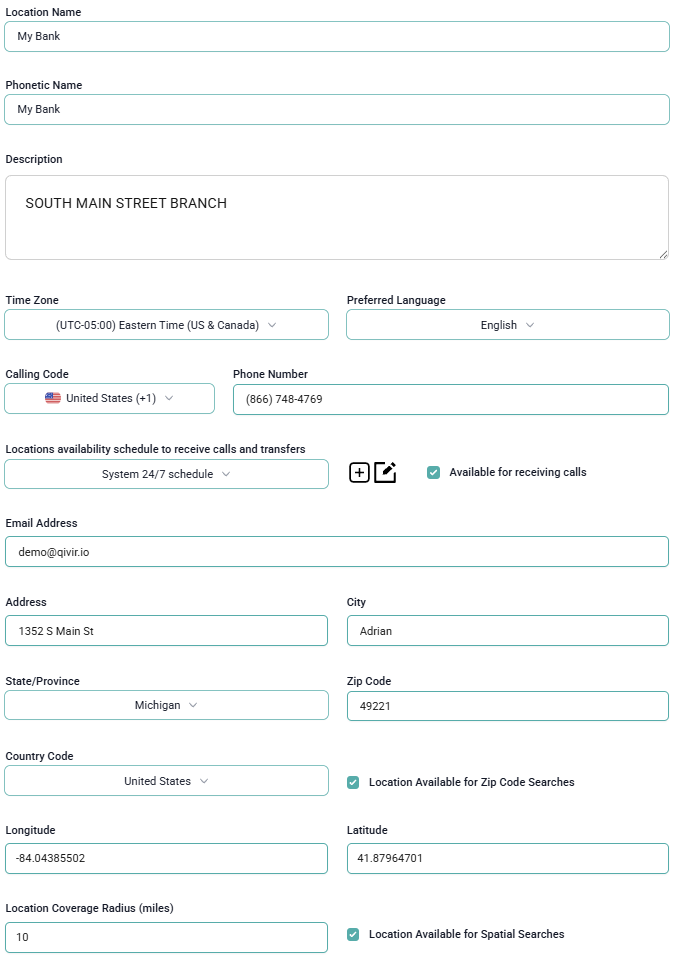
Enter a meaningful Name such as the DBA or specific name for this location.
Enter a Phonetic Name the Text-to-Speech engine can use to properly say your location's name during a phone call. For example, QIVIR is pronounced as 'quiver', so when the system needs to use the Text-to-Speech AI engine to speak the QIVIR name we would enter 'quiver' rather than QIVIR in the phonetic name field.
Enter a meaningful Description so that your team knows why this location was added, especially if you are using Locations as project folders.
Complete the remaining required fields such as the location's phone number, business schedule, email address and physical address - making sure all the pre-populated fields are correct.
Completing the remaining fields depends on how you plan to use the location. If you are going to be using the Business Location Finder feature, then you will need to complete the longitude, latitude and radius fields. In addition, if you enable the SMS feature in the Business Location Finder where a caller can request the location's information to be sent to their mobile device - you could add addition text information the caller will receive as part of the business's profile that gets sent to the mobile device.
Also depending on how you many use the Business Location Finder feature, you can optionally create Territories, then link them to this location.
Conclusion
Locations have several possible uses on the QIVIR platform, organizing marketing assets and programs along with configuring the Business Location Finder feature for callers to access as part of the IVR platform are the most common.